
11:16 p.m.
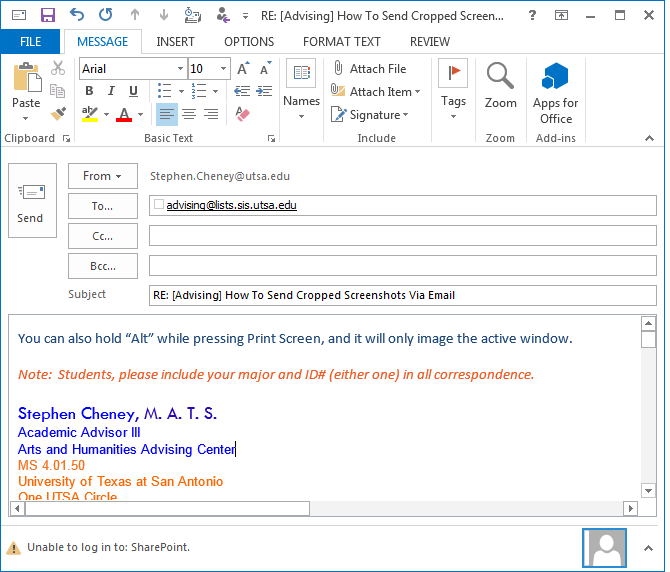
You can also hold "Alt" while pressing Print Screen, and it will only image the
active window. The attached image demonstrates how it will look.
Note: Students, please include your major and ID# (either one) in all correspondence.
Stephen Cheney, M. A. T. S.
Academic Advisor III
Arts and Humanities Advising Center
MS 4.01.50
University of Texas at San Antonio
One UTSA Circle
San Antonio, TX 78249-1644
P: (210) 458-6513
F: (210) 458-4901
Get Rowdy!
This email and any file transmitted with it may contain confidential information intended
solely for the use of the individual or entity to which it is addressed. If you are not
the intended recipient or the delegate responsible for delivering the communication to the
intended recipient, please be advised that you have received this communication in error
and that any disclosure, copying, distribution, printing or use of this information is
strictly prohibited; please notify the sender immediately of the error.
From: advising-bounces(a)lists.sis.utsa.edu [mailto:advising-bounces@lists.sis.utsa.edu] On
Behalf Of advising(a)lists.sis.utsa.edu
Sent: Thursday, February 15, 2018 4:54 PM
To: advising(a)lists.sis.utsa.edu
Subject: [Advising] How To Send Cropped Screenshots Via Email
Good afternoon,
A few words about screenshots (or screen shots).
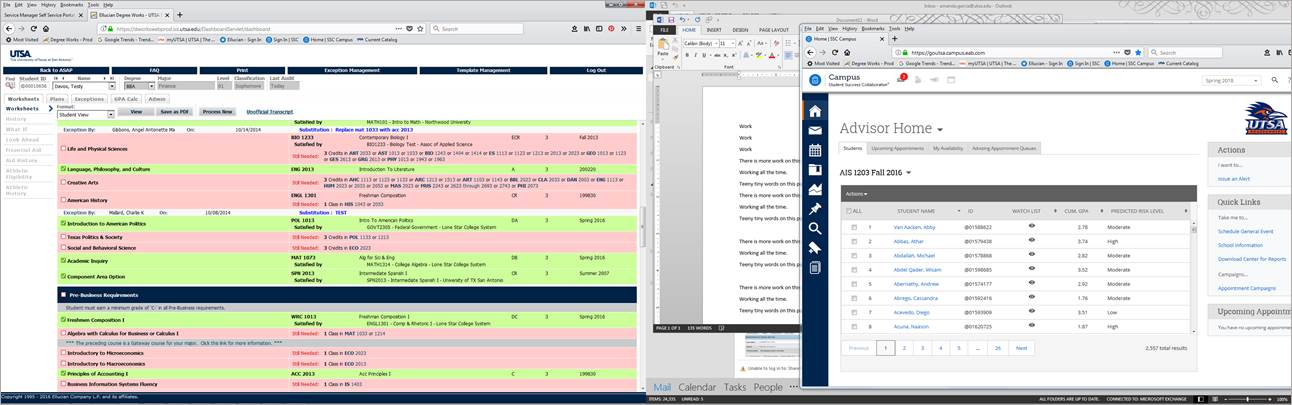
With our double screens, when we send screenshots that have not been cropped, this is what
they look like with both screens visible. Usually, we only want to send a piece of the
screen or only one screen and not both.
[cid:image001.jpg@01D3A680.A53BA2D0]
It can be hard to read for the recipient. Below are two options on how to make your
screenshots easier to see/read.
1. Snipping Tool
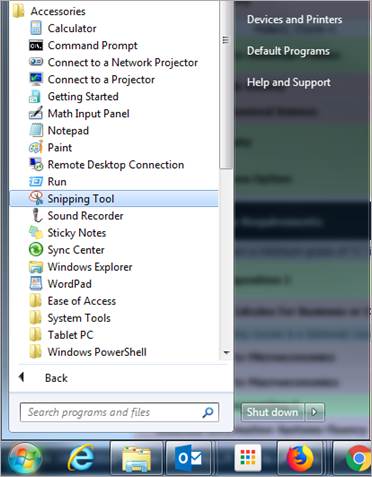
a. Go to your Start button and look for your Accessories folder, then click on
Snipping Tool.
[cid:image002.jpg@01D3A680.A53BA2D0]
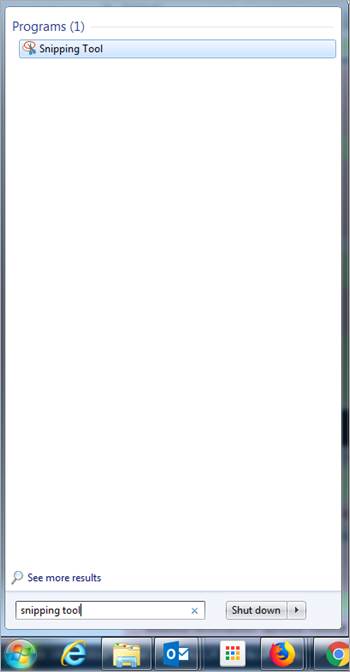
You can also find the tool by typing "Snipping Tool" in the search box.
[cid:image003.jpg@01D3A680.A53BA2D0]
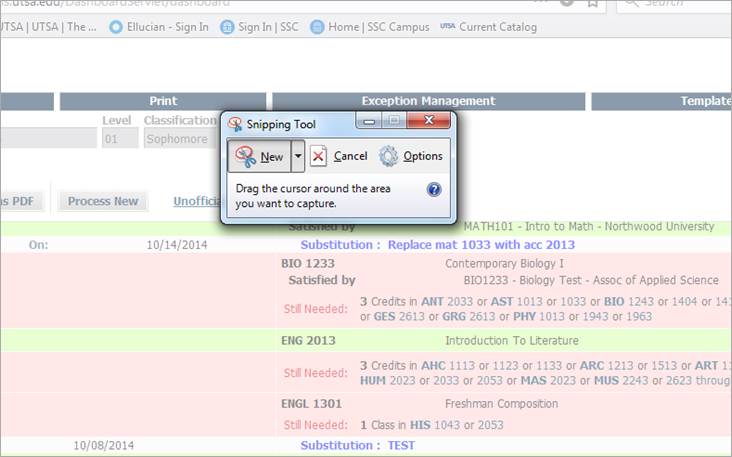
b. Once you click on the Snipping Tool, it will pop up a window and everything behind
it will become greyed out.
[cid:image004.jpg@01D3A680.A53BA2D0]
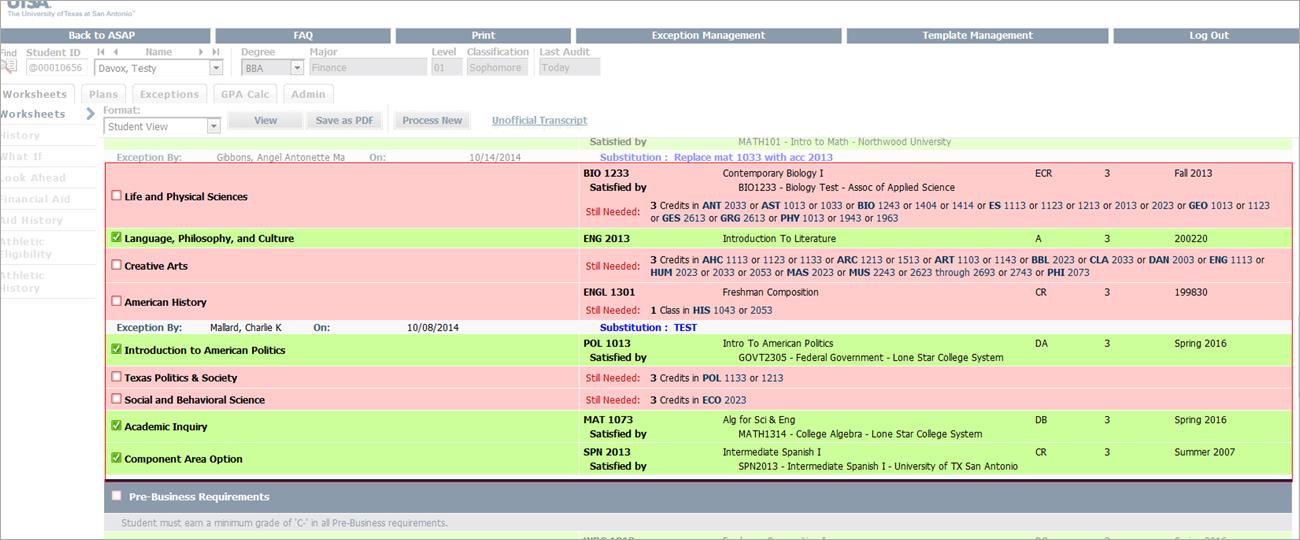
c. Next, using your mouse, click and drag a rectangle over the area you want to
copy.
[cid:image005.png@01D3A680.A53BA2D0][Greyed out area outside of red rectangle will not be
copied.][Area in red rectangle that will be copied.][cid:image010.jpg@01D3A680.A53BA2D0]
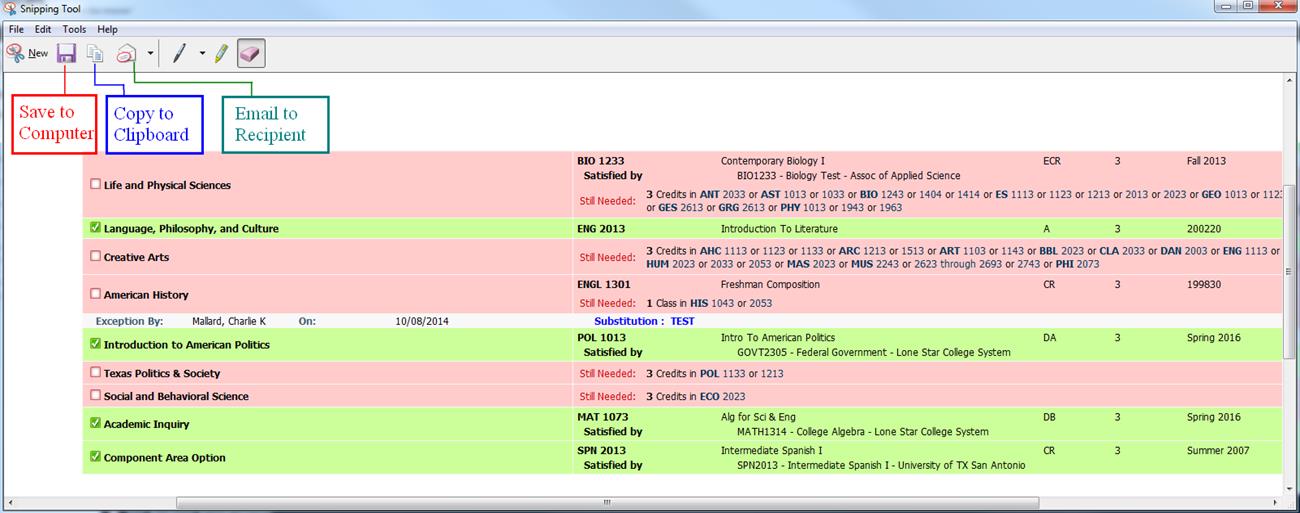
d. A new window will pop up with the area you copied. You can save it to your
computer, email it or make a few notations on it. If you have not already began typing an
email, and it is the only thing you are sending, you can just click on the email icon and
Outlook will open with the picture in the body of the email (or attached if you have
chosen that option.) Otherwise, copy it to your clipboard and paste in your email by
clicking Ctrl+V or right click your mouse and selecting 'Paste' from menu. You
can resize the picture in the email.
[cid:image011.jpg@01D3A680.A53BA2D0]
2. Print Screen Button/Paste/Crop
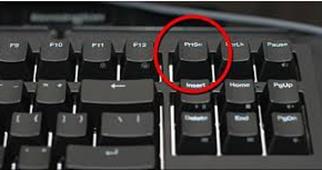
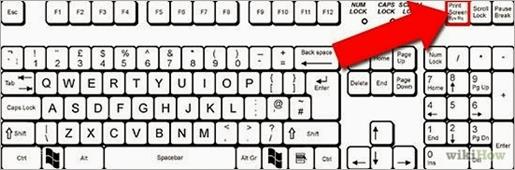
a. Click the Print Screen button on your keyboard. Depending on your keyboard, it
might say "Print Screen" or "Prt Scr". Usually it is above your
Insert/Home/Delete buttons. It could also be above your number pad.
[cid:image012.jpg@01D3A680.A53BA2D0] or [cid:image013.jpg@01D3A680.A53BA2D0]
Photos courtesy of Google Image search. Thanks, Google!
b. Go to your email and paste your screenshot by clicking Ctrl+V or right click your
mouse and selecting 'Paste' from menu.
c. You will then see your double-screen picture just like the first one in this
email.
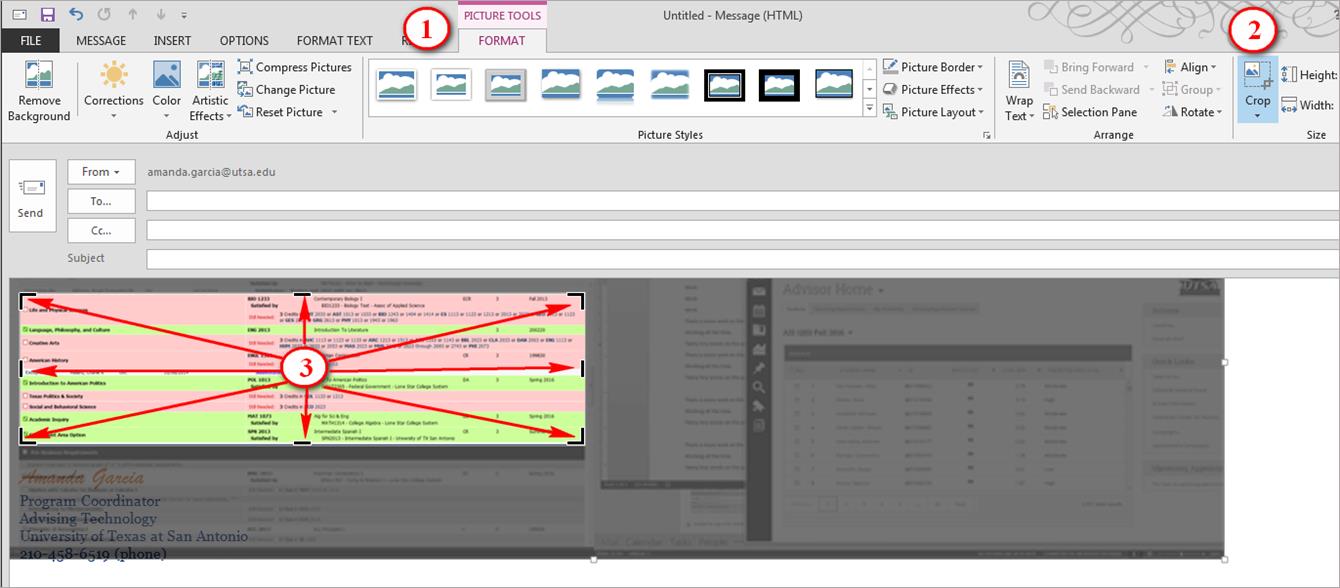
d. Click on your picture. Next, click on the Picture Format tab at the top of your
email ribbon (1). Next, click on Crop (2). Then you will drag the guide markers that have
just popped up on your picture to surround the area you want to copy (3).
[cid:image014.jpg@01D3A680.A53BA2D0]
e. Click on any space in the email outside the original picture.
f. Voilà! Your picture is now cropped. You can resize it to make it bigger. If
you can't read it, your recipient can't either, so be sure and resize if needed.
I am also sending attaching these instructions as a PDF in case you would prefer them that
way. I hope you have found these instructions to be helpful. If you have any questions,
please email me at Amanda.Garcia@utsa.edu<mailto:Amanda.Garcia@utsa.edu>.
Regards,
Amanda Garcia
Program Coordinator
Advising Technology
University of Texas at San Antonio
210-458-6519 (phone)

2968
days inactive
2968
days old
0 comments
1 participants
participants (1)
-
 advising@lists.sis.utsa.edu