How To Add A Longer Description to Your Exceptions
- First Post
- Replies
- Stats
-
Go to
- ----- 2026 -----
- April
- March
- February
- January
- ----- 2025 -----
- December
- November
- October
- September
- August
- July
- June
- May
- April
- March
- February
- January
- ----- 2024 -----
- December
- November
- October
- September
- August
- July
- June
- May
- April
- March
- February
- January
- ----- 2023 -----
- December
- November
- October
- September
- August
- July
- June
- May
- April
- March
- February
- January
- ----- 2022 -----
- December
- November
- October
- September
- August
- July
- June
- May
- April
- March
- February
- January
- ----- 2021 -----
- December
- November
- October
- September
- August
- July
- June
- May
- April
- March
- February
- January
- ----- 2020 -----
- December
- November
- October
- September
- August
- July
- June
- May
- April
- March
- February
- January
- ----- 2019 -----
- December
- November
- October
- September
- August
- July
- June
- May
- April
- March
- February
- January
- ----- 2018 -----
- December
- November
- October
- September
- August
- July
- June
- May
- April
- March
- February
- January
- ----- 2017 -----
- December
- November
- October
- September
- August
- July
- June
- May
- April
- March
- February
- January
- ----- 2016 -----
- December
- November
- October
- September
- August
- July
- June
- May
- April
- March
- February
- January
- ----- 2015 -----
- December
- November
- October
- September
- August
- July
- June
- May
- April
- March
- February
- January
- ----- 2014 -----
- December
- November
- October
- September
- August
- July
- June
- May
- April
- March
- February
- January
- ----- 2013 -----
- December
- November

Good afternoon,
We have all at one point or another wanted to use a longer description for exceptions but
have been unable to due to the 50 character limit. [Beacuase we are no longer just doing,
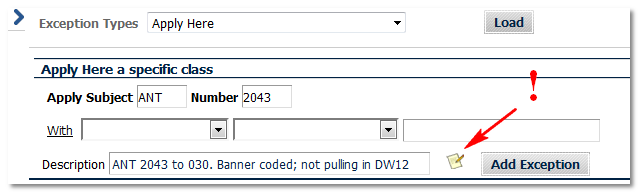
"Apply Here" right?] If you would like to add a longer description, click on the
small icon between the description box and the Add Exception button. This will allow you
to detail the exception if you should feel so inclined. And we should all feel inclined
to add good descriptions.
Shout out to one of our newest advisors, Richard from AHUM, who asked me during our DW
training the purpose of that icon/button. Apparently I was blind to it before then. Shame,
shame, shame *. I would have taken the credit but there were witnesses.
Click on the pencil/paper icon.
[cid:image001.png@01D3A998.7BCFDEA0]
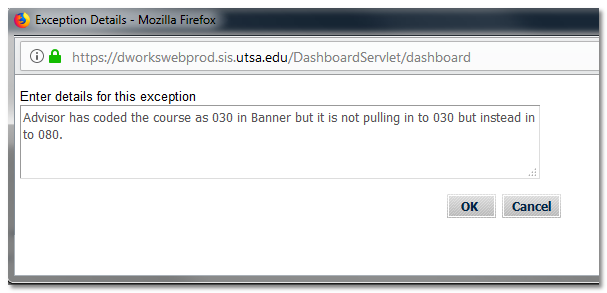
Enter details in box and click OK. Per usual, enter in the rest of your exception
information and click Add Exception.
[cid:image003.png@01D3A999.896C1A50]
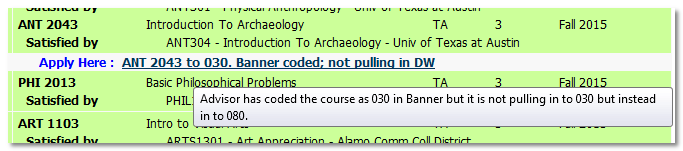
Now, when you hover your mouse over the exception on the worksheet, you will see the full
description below.
[cid:image005.png@01D3A999.12F7DA80]
If you scroll all the way to the bottom where all the exceptions are clustered together,
you can also hover over the description there.
[cid:image002.png@01D3A999.E2DE3460]
As always, feel free to send any questions about this to me at
Amanda.Garcia@utsa.edu<mailto:Amanda.Garcia@utsa.edu> or to
DegreeWorks@utsa.edu<mailto:DegreeWorks@utsa.edu>.
Regards,
Amanda Garcia
Program Coordinator
Advising Technology
University of Texas at San Antonio
210-458-6519 (phone)
Attachments:
- attachment.htm (text/html — 8.5 KB)
- image001.png (image/png — 16.7 KB)
- image005.png (image/png — 18.2 KB)
- image003.png (image/png — 24.4 KB)
- image002.png (image/png — 14.5 KB)

2964
days inactive
2964
days old
0 comments
1 participants
tags (0)
participants (1)
-
 advising@lists.sis.utsa.edu